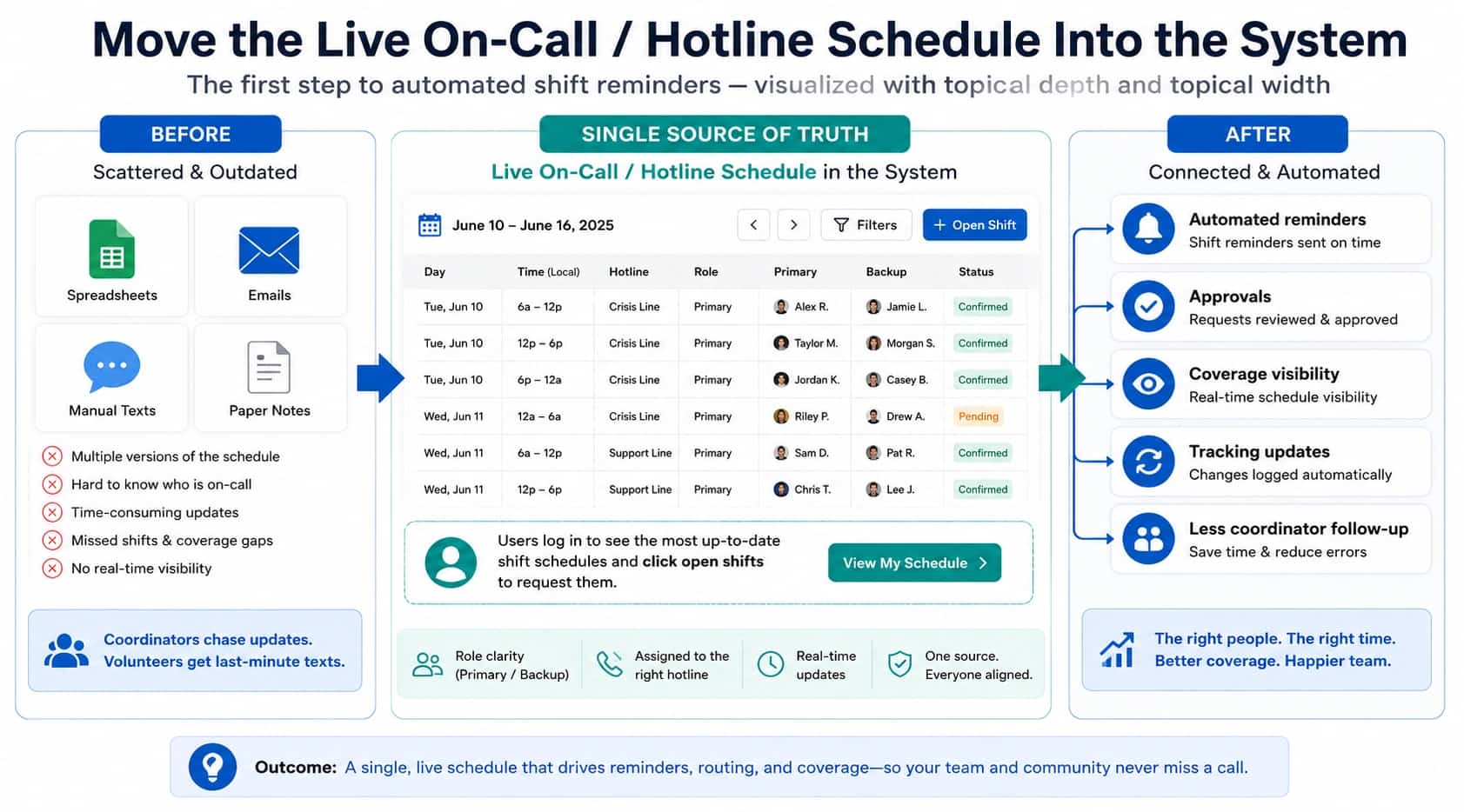
You can automate shift reminders by making the approved schedule the source of truth, letting team members see their own upcoming shifts, and enabling text reminders for upcoming shifts.
Here’s how:
Step 1) Put the shift schedule into Helpline Software
Start by moving the live on-call/hotline schedule into the system instead of managing reminders from spreadsheets, emails, or manual texts. The schedule includes who is primary, backup, or assigned to a specific hotline.
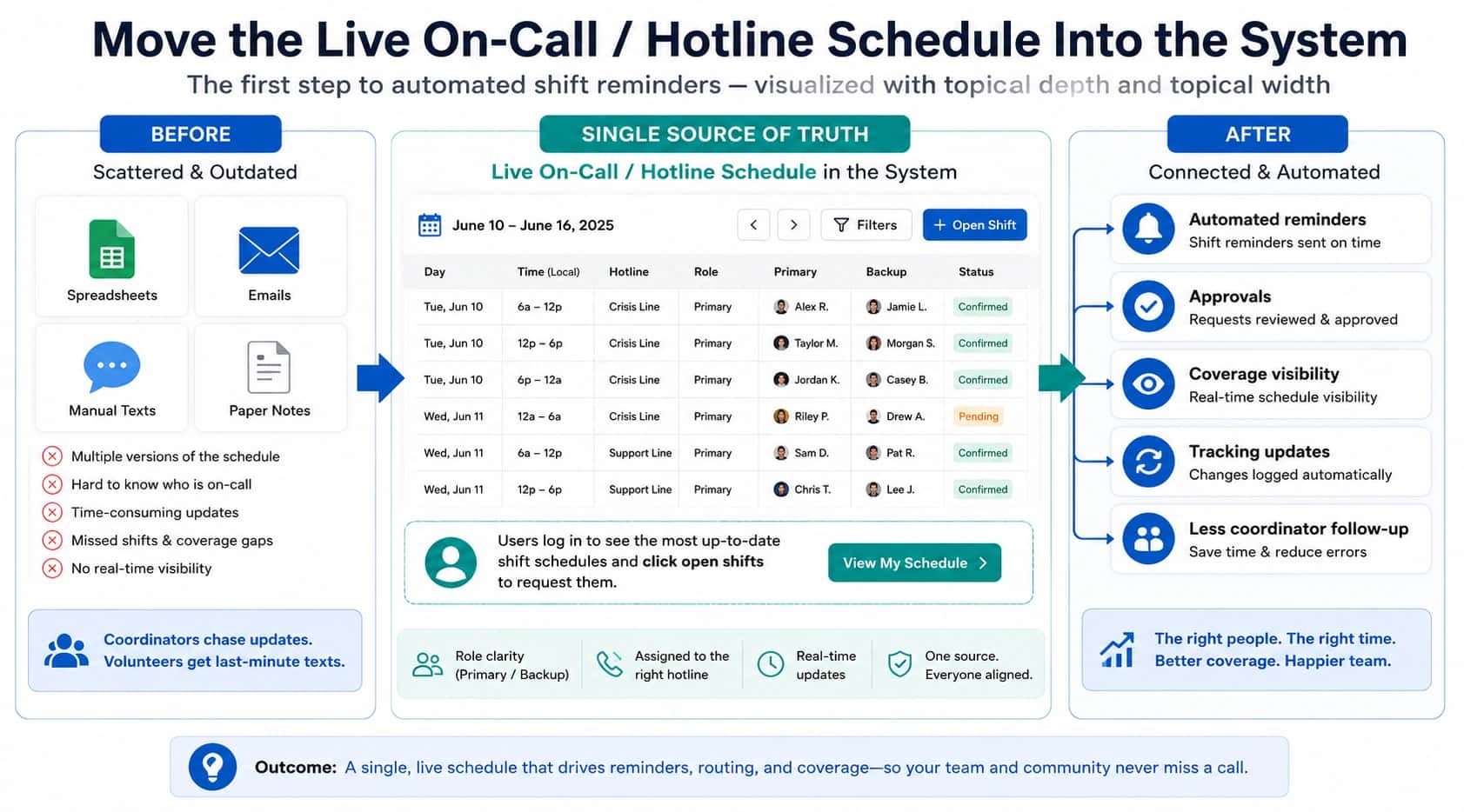
Step 2) Decide whether shifts require approval or can auto-approve
Once shifts are visible, choose if you prefer that admins will manually approve or deny shift requests, or if the system should auto-approve requests for empty shifts on a first-come, first-served basis. Helpline Software will connect the schedule directly to your call routing.
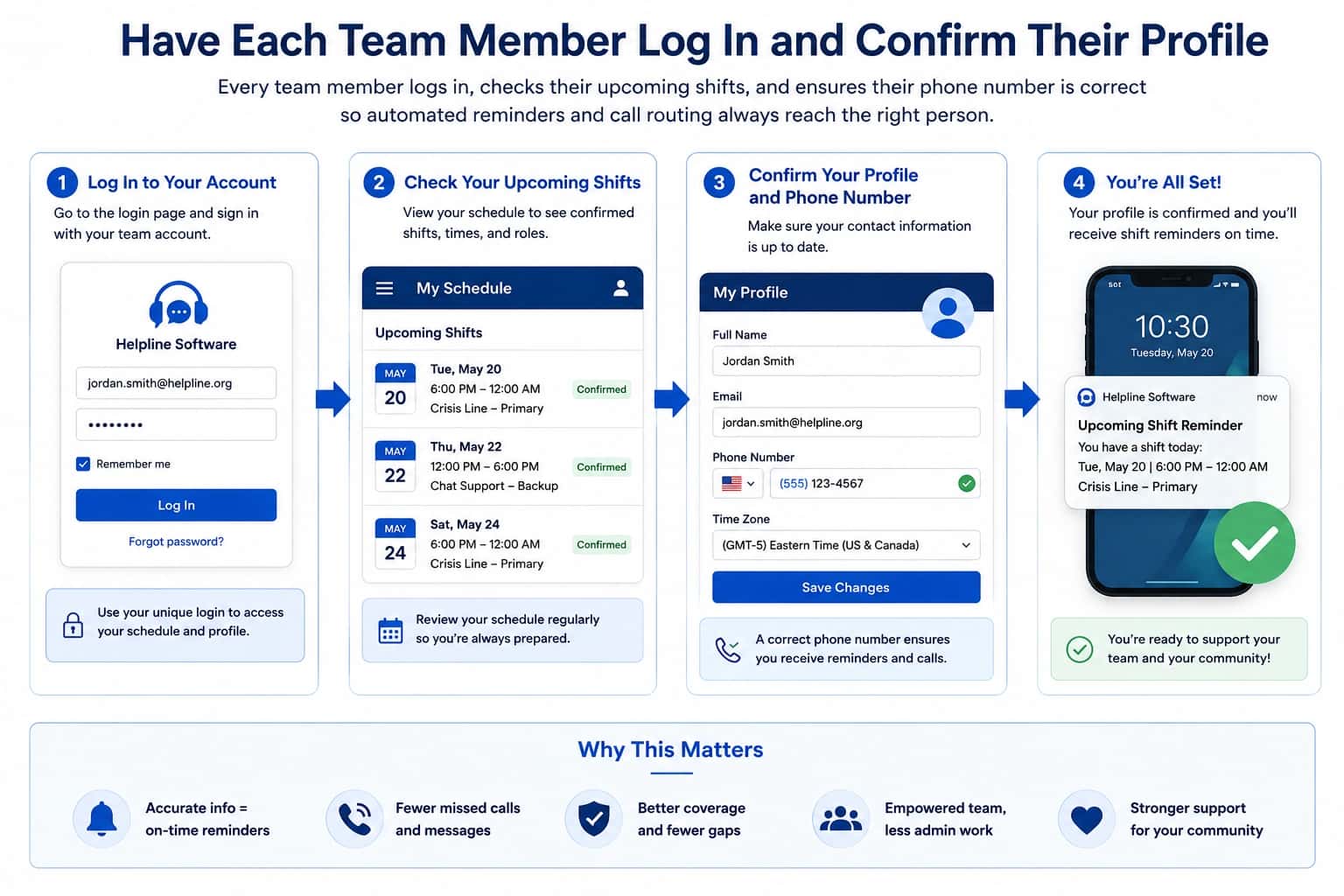
Step 3) Have each team member log in and confirm their profile
Each volunteer or staff member should log in, check their upcoming shifts, and make sure their phone number is correct.
Step 4) Turn on text reminders for upcoming shifts
The key automation is SMS opt-in. Volunteers “can opt in to get text message reminders of upcoming shifts.”
So the process is:
- Volunteer logs in.
- Volunteer checks profile / upcoming shifts.
- Volunteer opts in to text reminders.
- The system sends reminders tied to their upcoming shifts.
Step 5) Keep routing tied to the approved schedule
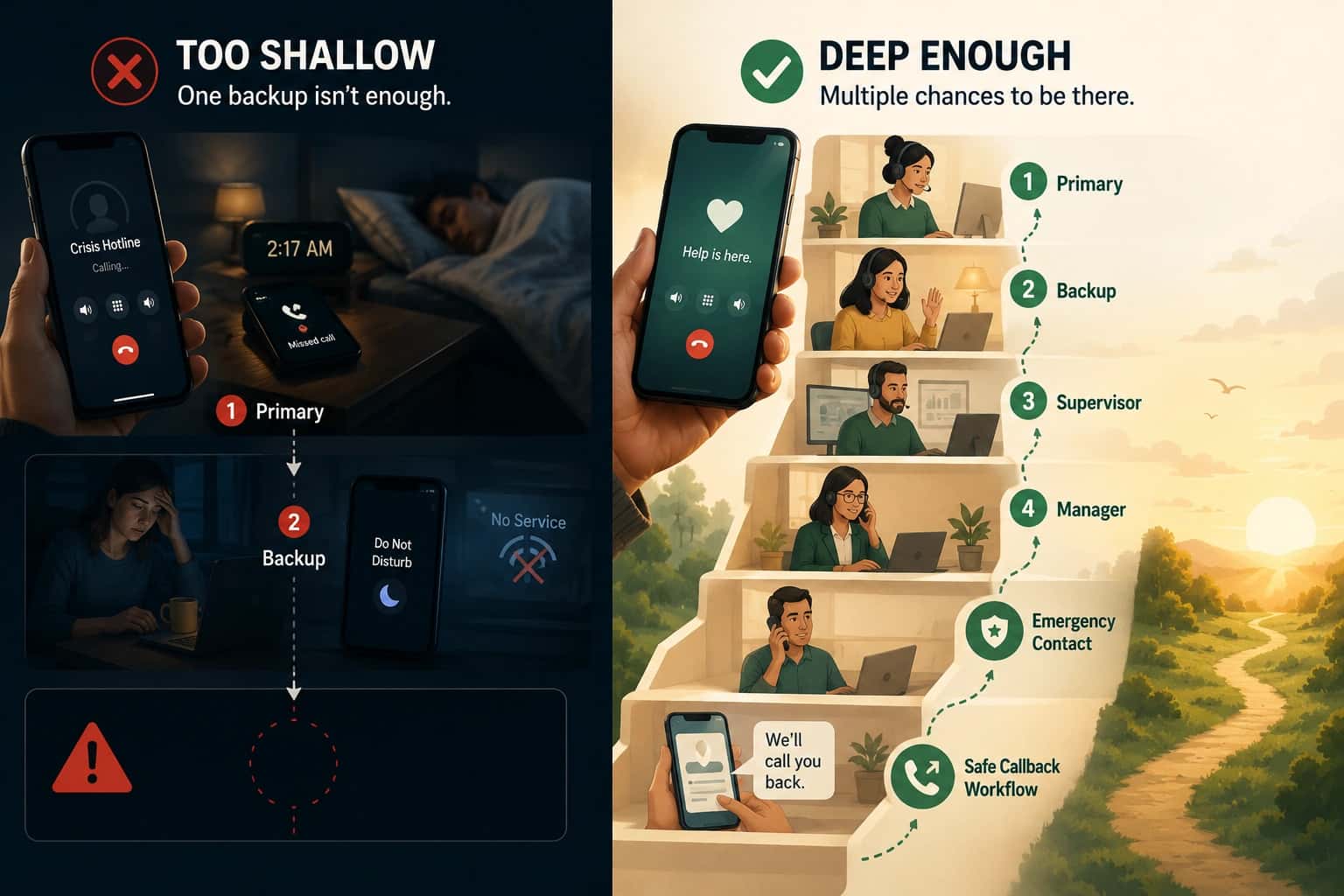
This matters because reminders alone are not enough. If the schedule changes, the actual call routing must change too.
If a shift swap is approved, the right person receives calls; if someone is unavailable, backup coverage should activate.
Step 6) Use real-time visibility to catch problems
Admins should still monitor coverage, especially for hotline or crisis work.
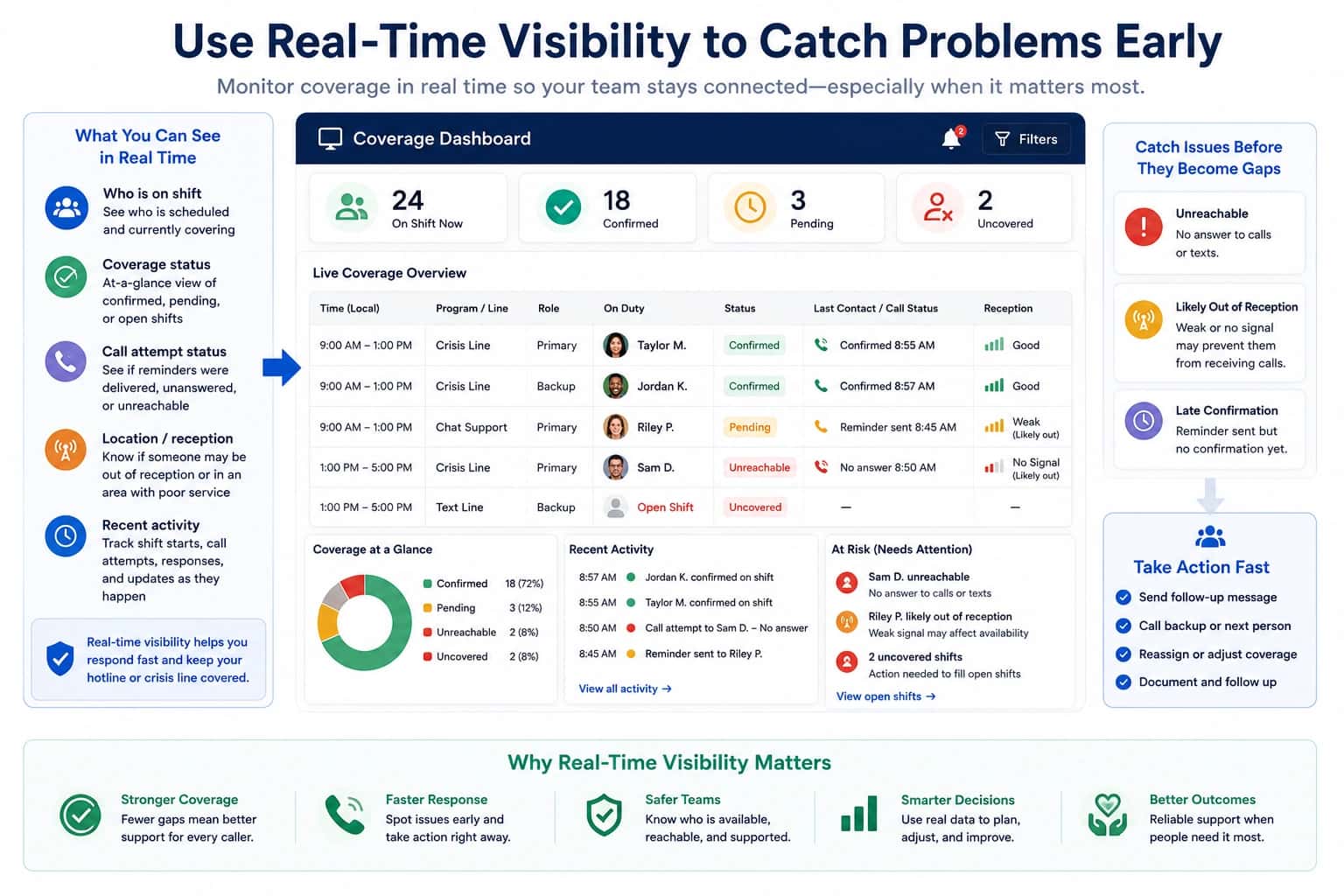
The system can show what is happening in real time, including whether someone was unreachable or likely out of reception.
Step 7) Make reminders part of onboarding
When onboarding staff or volunteers, tell them:
“Log in to Helpline Software, check your profile, confirm your phone number, view your upcoming shifts, and opt in to text reminders.”
During setup, Helpline Software representatives meet with the organization to understand how they want things to work, and teams can keep many of their existing processes while moving shift requests into the system.
Final thoughts
To automate shift reminders, add your team’s schedule into Helpline Software, have volunteers or staff log in to view their upcoming shifts, and ask them to opt in to text-message reminders. Admins can approve requests manually or auto-approve them, and once a shift is approved, the schedule updates across the system.
That way, reminders, routing, and coverage all follow the same live schedule instead of relying on manual texts, spreadsheets, or last-minute coordinator follow-up.
Frequently asked questions
Can Helpline Software automatically send on-call shift reminders?
Yes, Helpline Software can automatically send text reminders for upcoming on-call shifts. Daily reminders are tied to the same live schedule used for coverage, so managers do not have to maintain a separate reminder list. Responders can also see their upcoming shifts.
How far in advance are Helpline Software shift reminders sent?
Helpline Software supports daily text reminders for upcoming shifts. Exact reminder timing options should be confirmed during setup. The important benefit is that reminders come from the live schedule rather than manual manager messages.
Do shift reminders update when someone swaps a shift?
Yes, shift reminders should follow the updated approved schedule when a shift is swapped or reassigned. In Helpline Software, the live schedule is the source of truth for coverage, so routing and the shifts staff see follow the new assignment after the change is approved.
Can staff request open shifts or swap coverage themselves?
Yes, Helpline Software supports workflows for staff or volunteers to request open shifts and for admins to approve, deny, or reassign coverage. Teams can also use auto-approval for certain open shifts when that matches their policy. This reduces manual email and text coordination.
Do shift reminders change who receives calls?
No, the reminder itself does not change who receives calls; the approved live schedule does. Helpline Software uses that same schedule for routing, which is why reminder and call-routing information stay aligned. A person who receives a reminder should see the same assignment the phone system uses.
What happens if someone becomes unavailable during their shift?
If someone becomes unavailable during their shift, the schedule or availability status should be updated so new calls no longer depend on that responder. Helpline Software can route to the configured backup or next eligible person. The exact workflow can include admin changes or responder availability updates depending on setup.
Can automated reminders reduce missed after-hours calls?
Yes, automated reminders can reduce one common cause of missed after-hours calls by helping responders remember when they are responsible and make sure their phone is ready to receive calls. They do not solve every failure, so teams still need backup escalation, busy and unreachable handling, and logs. Reminders work best as one layer in a reliable coverage system.
Why is it better to keep reminders and routing in the same system?
It is better to keep reminders and routing in the same system because both should reflect the same live assignment. Separate systems create the risk that a person is reminded about one shift while the phone system still routes according to another. Helpline Software uses one schedule for both coverage visibility and routing.