
On-Call Scheduling: How to Build and Manage a Rotation
Build reliable coverage for urgent calls with separate calendars, primary and backup shifts, reminders, handoffs, and live call routing.
Rated 5 Stars by Verified G2 Users






Build your 24/7 support or nonprofit hotline rotation with a primary and backup for each shift.
Helpline Software uses that schedule to route calls to the assigned engineer, staff member, or volunteer, then tries the backup if unanswered, without manual forwarding.
On-call scheduling assigns primary and backup coverage to set time blocks.
The live schedule shows who should receive the next urgent call.
This guide is for hotline coordinators, support managers, and on-call operations leads. It explains how to build a rotation, manage changes, and route live calls.
For the full workflow map across scheduling, routing, and escalation, start with the on-call support teams hub.
What is an on-call rotation?
An on-call rotation moves coverage from one qualified person to another. It can change by week, night, weekend, or shorter block.
The rotation is the rule. The schedule is the live record of each assignment and change.
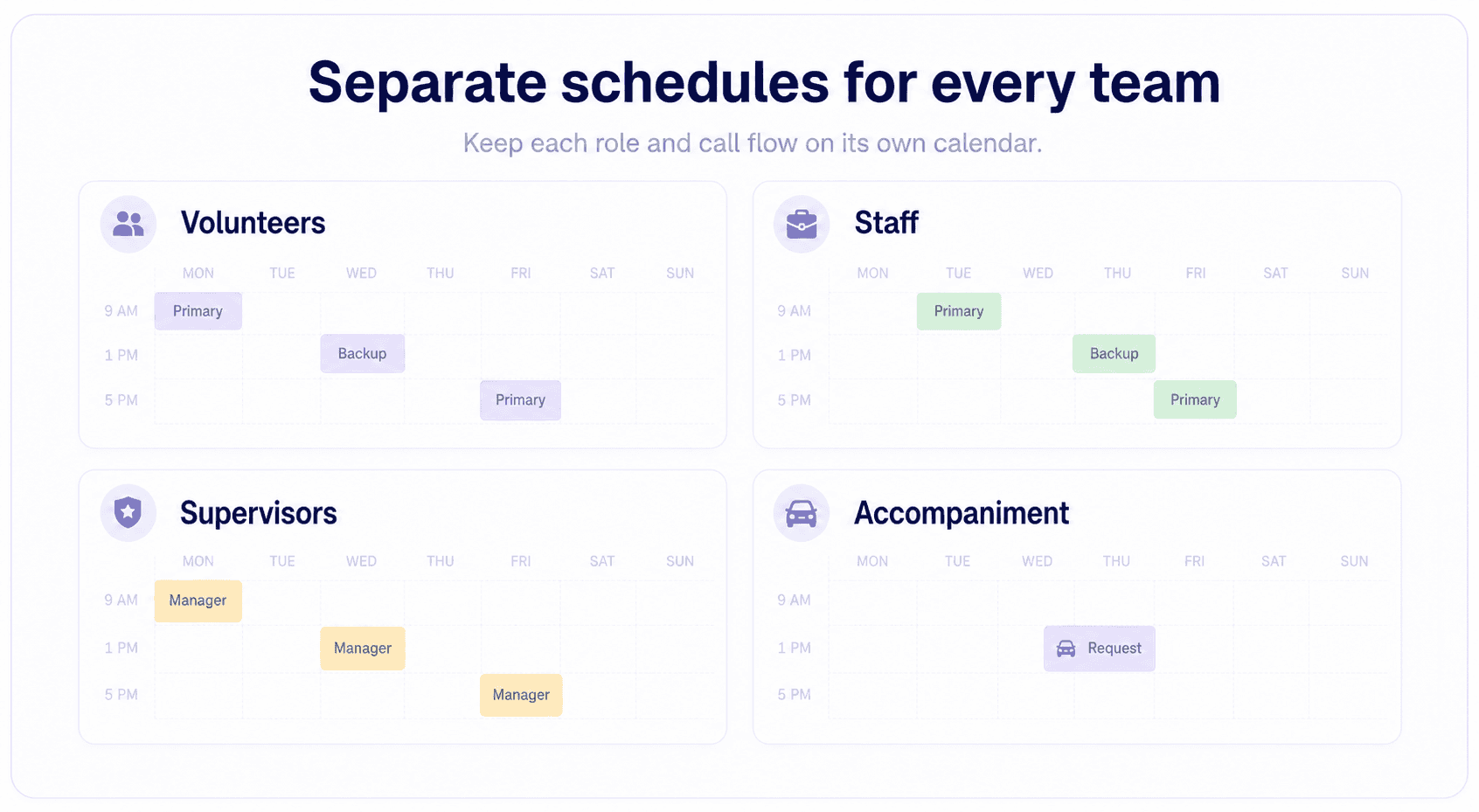
1. Give each team its own schedule
Give each team its own schedule and call flow. This makes qualifications, coverage, and swap approvals easier to see.
Nonprofits may need separate calendars for volunteers, staff, supervisors, and accompaniment teams.
Other organizations can separate calendars by region, skill, service, or language, then route each menu choice to the right one.
2. Choose shift structures that fit the work
Shift lengths can differ by team. Weekly rotations reduce handoffs, while shorter blocks can spread nights or field coverage more fairly.
Base shift length on call volume, call length, skills, and fatigue. Give every block a primary and backup, and keep manager coverage on its own calendar.
Example: an after-hours rotation
| Coverage block | Primary | Backup |
|---|---|---|
| Weeknights, 5 p.m.–midnight | Evening responder | Evening backup |
| Overnight, midnight–8 a.m. | Overnight responder | Overnight backup |
| Weekend days, 8 a.m.–8 p.m. | Weekend responder | Weekend backup |
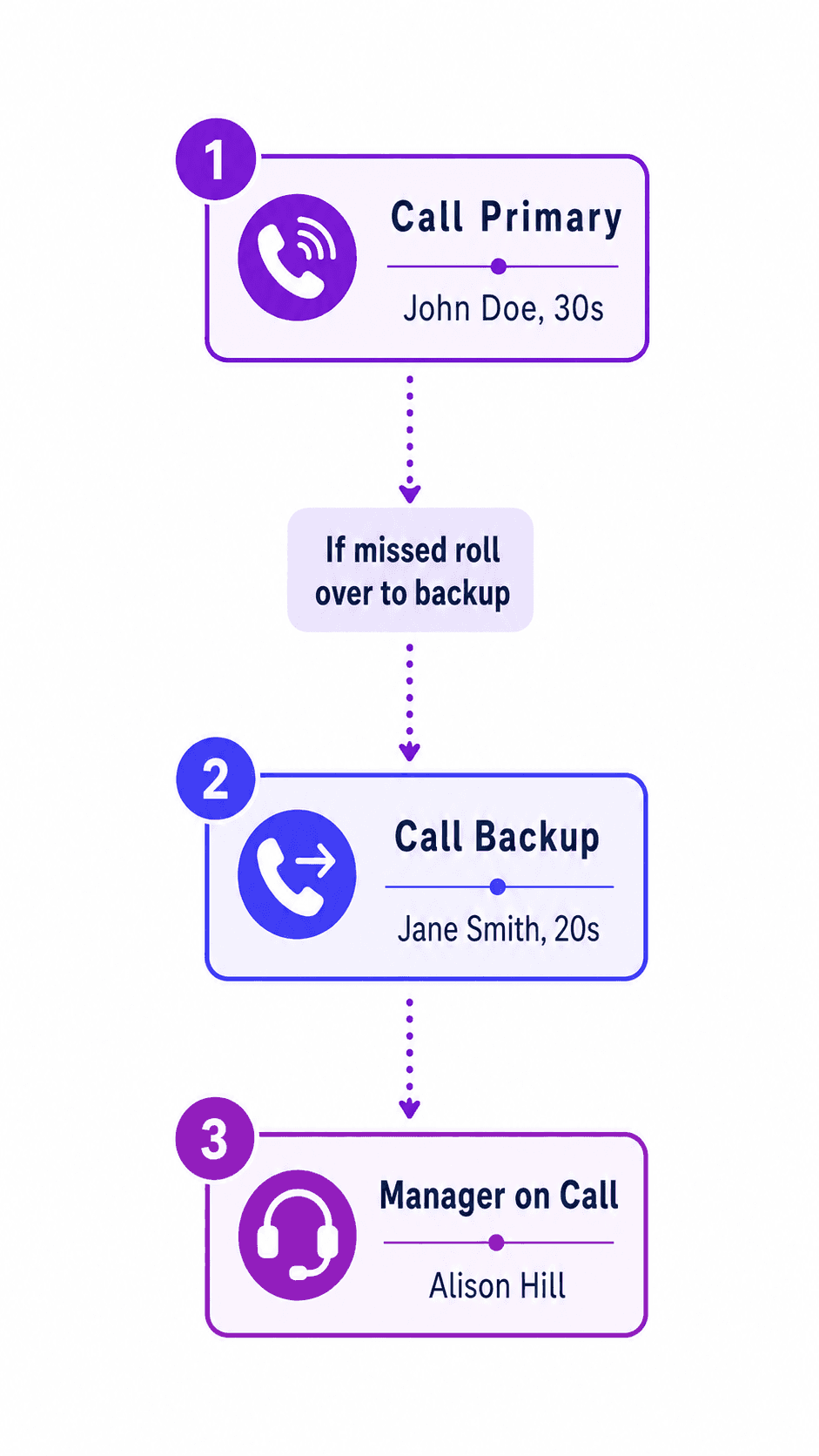
3. Build a short primary, backup, and escalation path
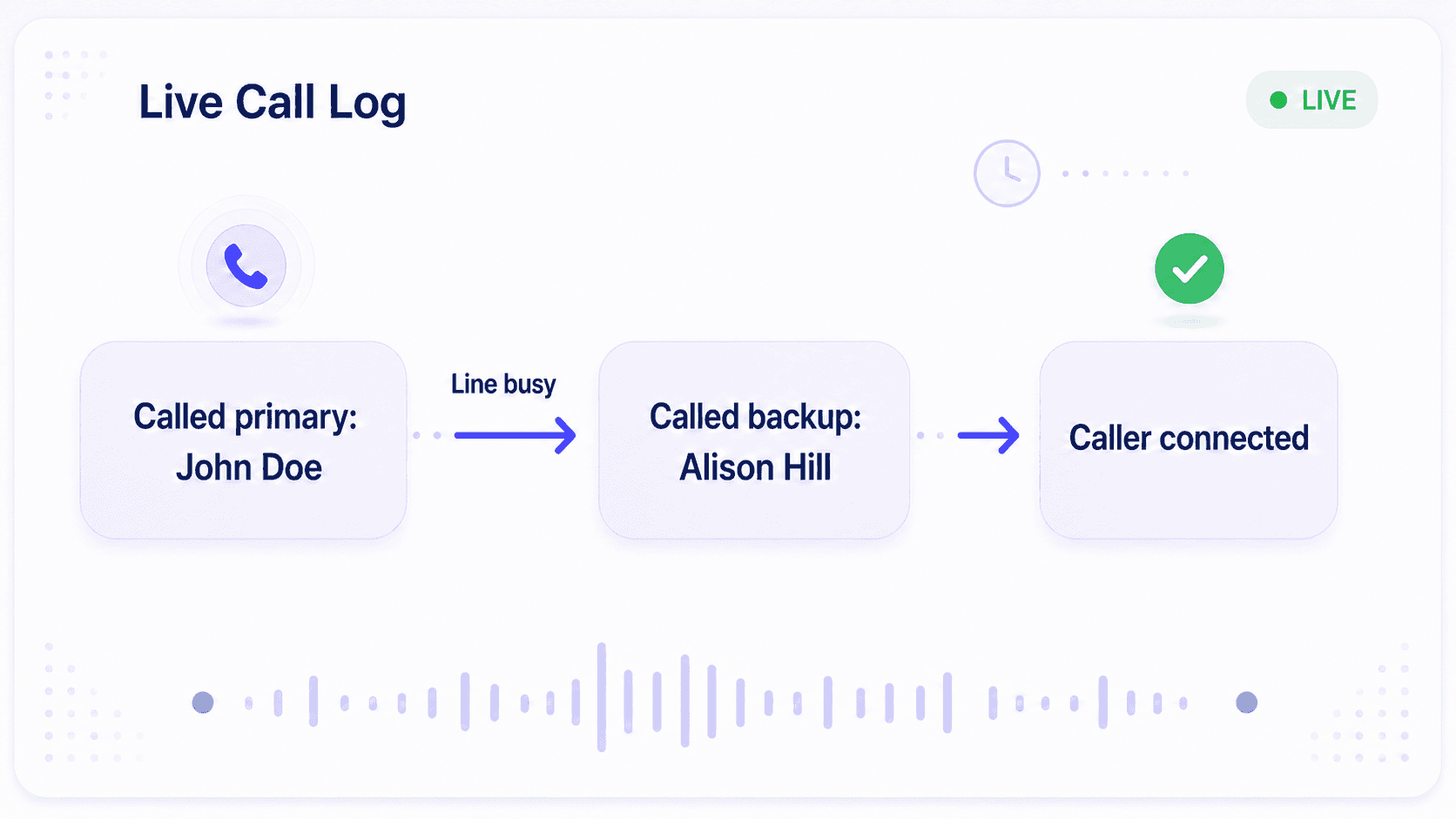
Keep the answer path short. Call the scheduled primary, then the backup, then start the agreed callback or manager workflow.
- Call the scheduled primary on the right team calendar.
- If they do not answer, call the scheduled backup.
- If neither answers, start the callback and manager-notification workflow.
- Record each attempt and the final result.
Avoid long call-down lists. They become stale and make callers wait through too many attempts.
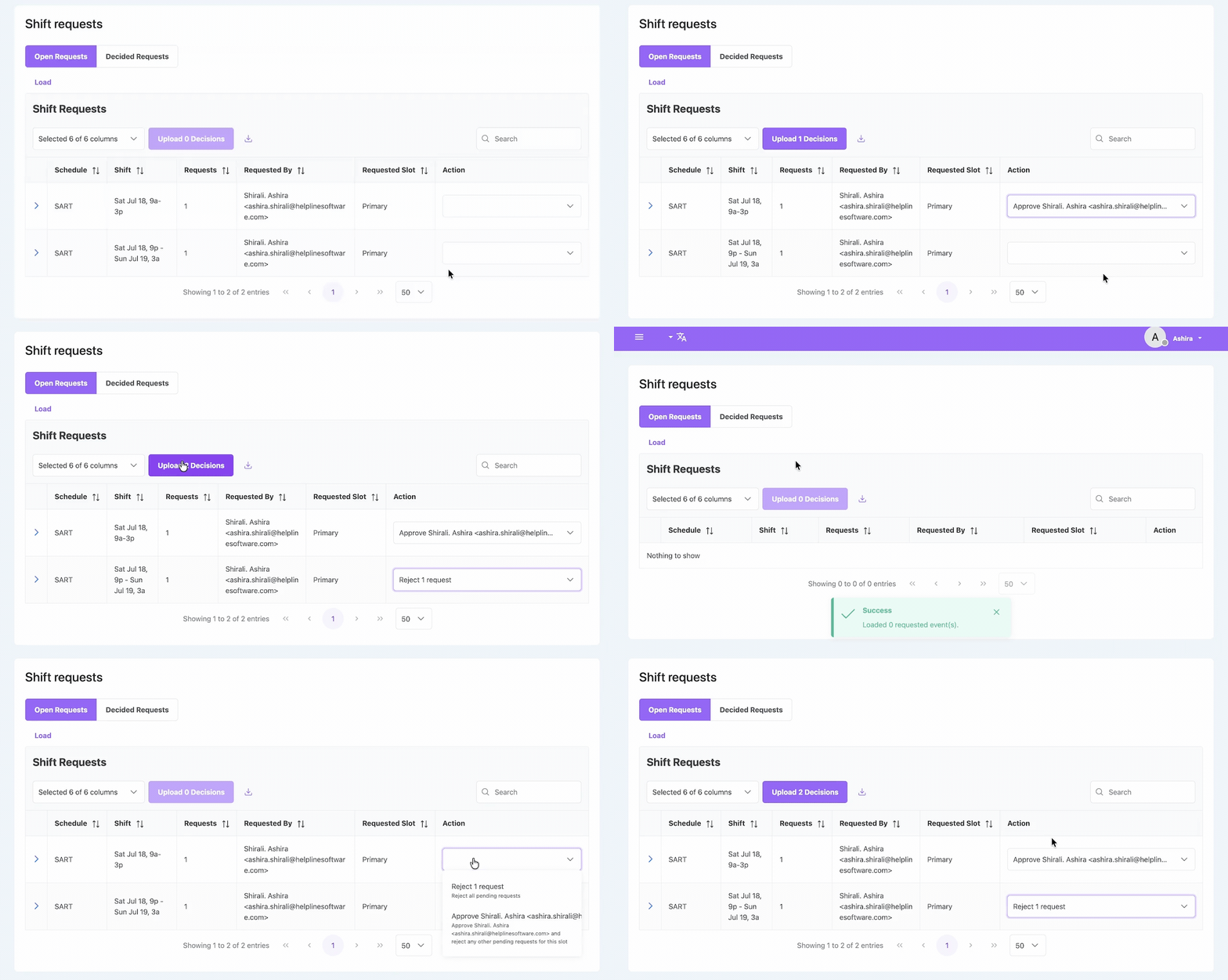
4. Manage open shifts, requests, swaps, and approvals
If you want staff to pick up shifts, create a shift request system within your scheduling software.
Set the rules in advance. Decide who can request shifts, who approves them, and whether someone can drop a shift before a replacement is approved.
Auto-approve routine requests, but send higher-risk shifts to a manager. Helpline Software can send email notifications for shift requests.
Popular shifts get many requests. Decide if you want to assign those, or use auto-approval to give them to the first person who signs up.
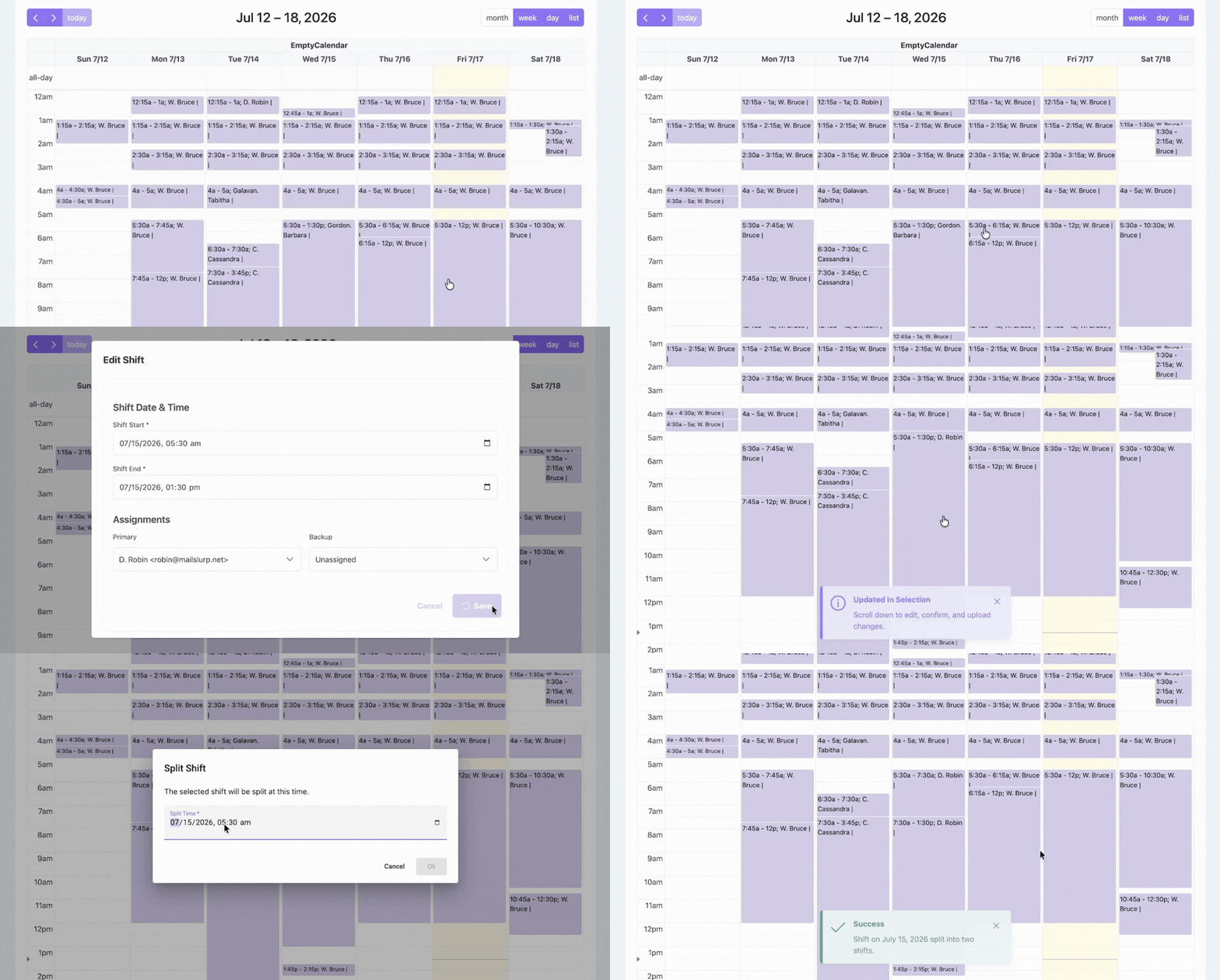
Treat every swap as a handoff
A swap is complete only when the live schedule shows the new owner. The incoming responder must also receive the handoff.
- Update the live schedule before the shift starts.
- Confirm the new primary and backup.
- Share open cases, callbacks, safety concerns, and promises to callers.
- Confirm the phone number and call route.
- Record the approval when required.
5. Use shift reminders as a safety net
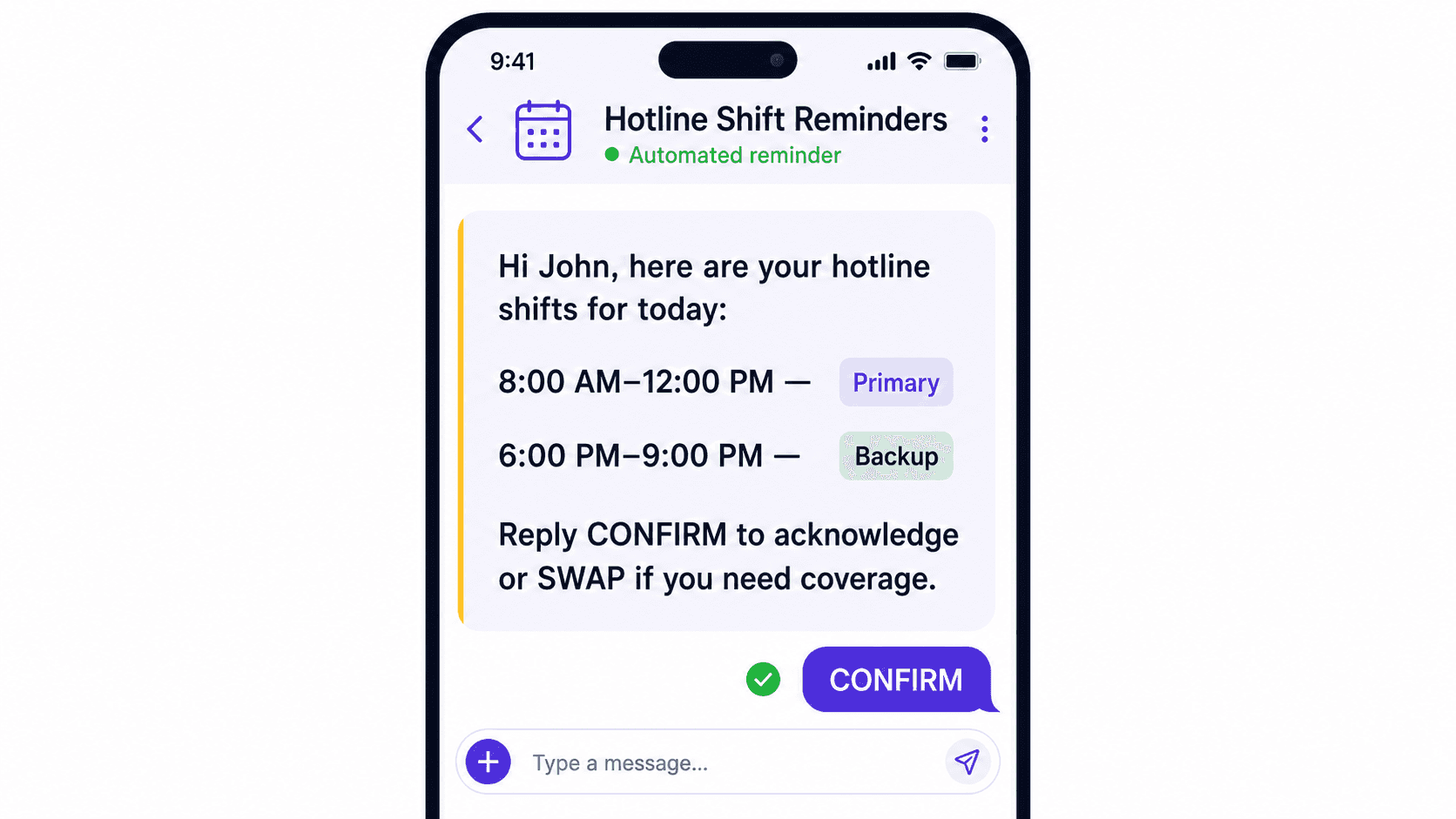
Send reminders early enough for people to report a conflict. Include the team, shift time, role, and what to do if they cannot cover it.
A systematic review of health-care appointment reminders found that reminders improve attendance, cancellation, or rescheduling.
Helpline Software can send text reminders before each shift. See how automated shift reminders work for on-call teams.
6. Handle last-minute changes and accompaniment dispatch
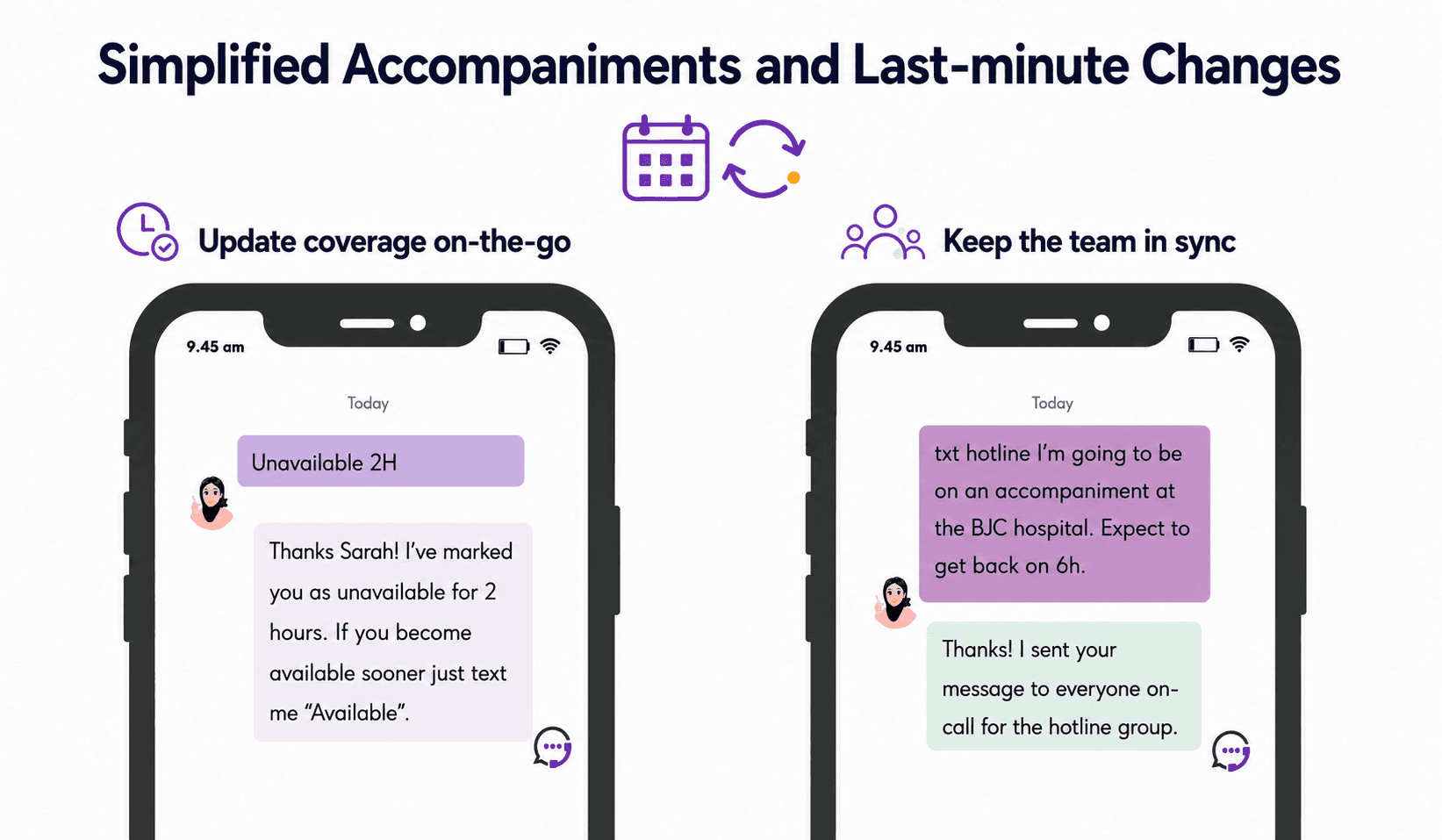
A last-minute change does not always require a full swap. A responder may need to leave briefly for an accompaniment call or return earlier than planned.
Make sure you have a plan for accompaniment: how is coverage updated? Who is the backup?
Helpline Software allows staff to update their availability with a text. Responders can text "Unavailable" with a time window, so new calls skip them. Helpline can notify the rest of the on-call team when someone leaves for an accompaniment.
For a complete dispatch workflow, see dispatch software for on-call teams.
7. Let the live schedule control call routing
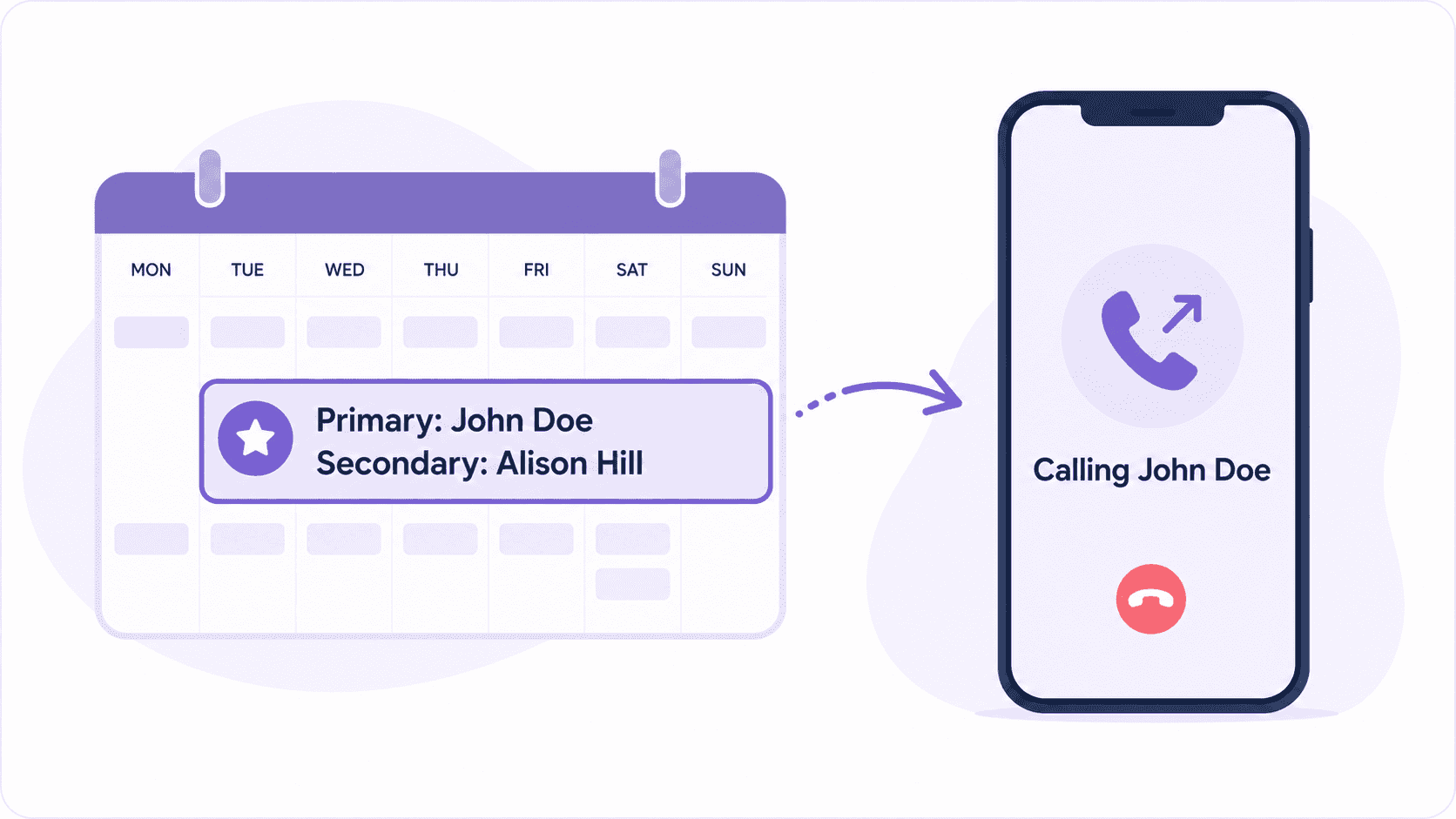
The live schedule should control the next call. The system should check the right team calendar, call the primary, then follow the backup and callback path.
Keep each team calendar current and connect it to the right call flow.
Helpline routes calls to your team by connecting your on-call schedule and phone line.
See the schedule-based call-routing workflow if your team needs to route calls according to the live schedule.
8. Verify the schedule before it goes live
Test the schedule and call path before the rotation starts. Make sure the right person receives each call quickly.
- Check each team calendar for gaps and overlaps.
- Confirm primary, backup, and manager contacts.
- Review open shifts, swaps, and pending approvals.
- Test each important menu choice and service line.
- Test the callback and manager-notification path.
- Review the call log to confirm each attempt and its order.
How to manage an on-call schedule week to week
Review the schedule before each coverage period and after any missed call or approved change. Look for gaps, repeated backup use, frequent last-minute drops, or uneven workloads.
Scheduling is one part of broader on-call management. Team policies, response quality, and oversight also affect whether coverage works.
Keep one simple routine: publish coverage, fill open shifts, confirm reminders, test route changes, and review exceptions. The live schedule should be the single source of truth.
When a shared calendar is no longer enough
A basic calendar can record a rotation. If you also need requests, approvals, reminders, routing, callbacks, and logs, use on-call scheduling software to keep them tied to the live schedule.
Helpline Software for On-call Teams and Hotlines
For 15-Person Support Teams
For a support team of 15 people, Helpline Software can connect one support number to the live on-call schedule. Teams can organize coverage into 8-hour shifts, with a primary and backup assigned to each period. Incoming calls follow the person currently scheduled, and Helpline automatically tries the backup if the primary does not answer or accept. For easy schedule changes, administrators can reassign, swap, or update shifts in bulk, and every approved change affects the next call. Call logs record each routing attempt and outcome, keeping schedule management and phone coverage in one place.
For Regular and Voluntary Shift Coverage
Helpline Software combines an on-call phone system with a live shift schedule, so calls route to whoever is assigned at that time. Administrators can create recurring regular shifts and assign staff directly for predictable coverage. For voluntary off-hours shifts, team members can request open coverage, with automatic approval or an administrator review. Admins can reassign, split, or update groups of shifts with bulk edits, and an approved change affects the next incoming call. For teams comparing products, Helpline keeps regular coverage, voluntary off-hours scheduling, and phone routing in one system.